Why won't my QR code scan?
A QR code that won't scan usually fails for one of nine reasons. Work through them in order — the first three explain most cases.
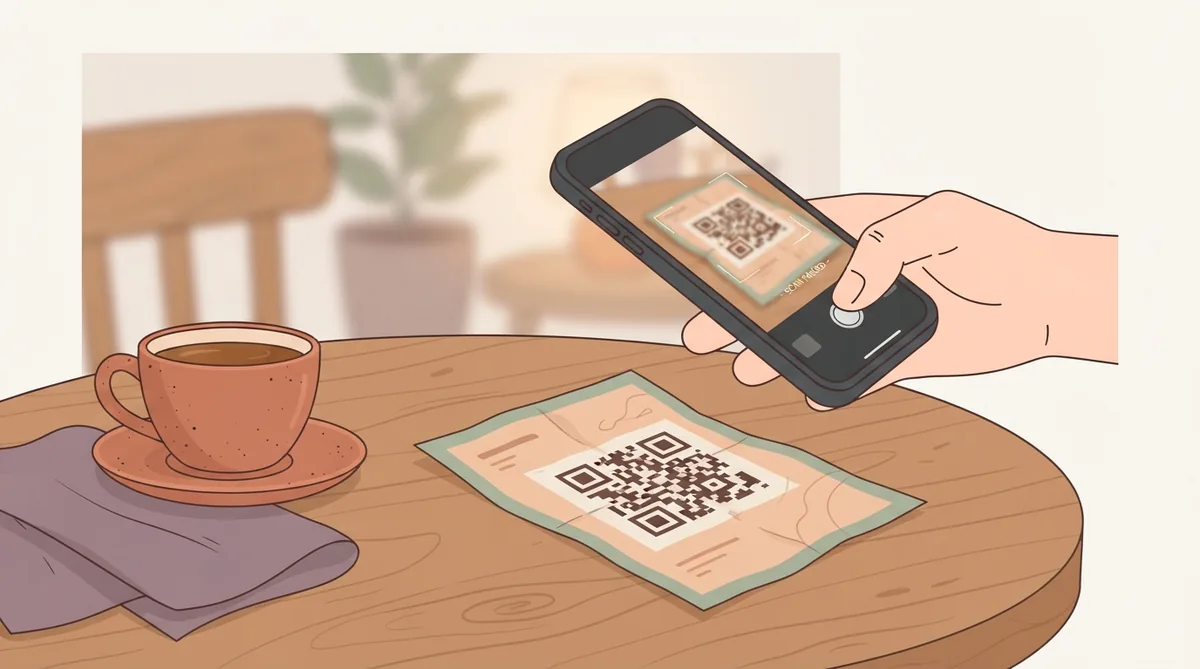
A QR code either scans or it does not, and when it does not there is rarely an error message to work from. The good news is that the causes are a short list. Work down it in order — the first three account for most failures we see.
1. The code is too small for its viewing distance
This is the single most common cause. A code that scans perfectly on your monitor can be unreadable at 2cm on a printed leaflet, because the camera cannot resolve the individual modules.
The working rule is that a code needs to be about a tenth of its scanning distance. Read from 30cm, so 3cm across. Read from across a room at 3m, so 30cm across. Round up rather than down — nobody has ever complained that a QR code was slightly too big to scan.
2. There is not enough contrast
Scanners need a clear difference between the dark modules and the light background. Pale grey on white, or two mid-tone brand colours, will fail under anything less than perfect light — which is most real light.
Aim for a contrast ratio of at least 7:1 between foreground and background. Dark on light is also strongly preferred: inverting a code so it is light modules on a dark ground breaks some older scanners entirely, even when the contrast is technically fine.
3. The quiet zone has been cropped
Every QR code needs a margin of clear space around it — the quiet zone — so the scanner can find where the pattern begins and ends. It should be at least four modules wide, which is roughly the width of one of the corner squares.
Designers crop this constantly, because the code looks like it has too much padding. It does not. Text, a border, or another image butting up against the pattern is enough to stop it resolving.
4. The destination is too long
Longer data means more modules in the same space, which means each module is smaller and harder for a camera to resolve. A URL with a long tracking string produces a visibly denser code than a short one.
Shorten the link first, or use a dynamic code, which encodes a short redirect address rather than the full destination. The difference in density is dramatic and it is free.
5. It was printed on the wrong surface
- Glossy stock reflects light straight back into the camera and creates a hotspot across the code
- Textured or uncoated paper lets ink spread, blurring the boundary between modules
- Curved surfaces — bottles, cups, cans — distort the pattern; a code needs to sit on the flattest area available
- Fabric moves and stretches, and rarely holds fine detail well
6. A logo is covering too much of it
QR codes carry error correction, so some of the pattern can be obscured and still decode. That tolerance is a budget, not a free pass. At the highest correction level about 30 per cent of the code can be damaged, but a logo sitting over 30 per cent leaves nothing spare for a scuff or a shadow.
Keep a logo under about 20 per cent of the area, centred, and raise the error correction level when you add one.
7. Ink bleed at small sizes
On a home or office printer, adjacent dark modules can bleed into each other and merge. The result looks fine to the eye and is unreadable to a scanner. Print at the highest quality setting, and if the code must be small, test that exact size rather than a scaled-up proof.
8. The destination itself is broken
Sometimes the code scans perfectly and the failure is at the other end — a dead link, a page that requires a login, or a site that does not work on mobile. The scan succeeded; the journey did not.
Scan your own code and follow it all the way through on a phone, on mobile data rather than office wifi.
9. The code was damaged after printing
Codes on counters get wet, codes on windows fade, codes on packaging get scuffed in transit. If a code worked and then stopped, look at the physical object before you look at anything else. Laminating anything that lives on a surface people touch is cheap insurance.
A quick diagnosis order
- 1.Scan it on screen. If that fails, the problem is the code itself — contrast, density or a logo.
- 2.Print it and scan the print. If screen works and print does not, it is size, surface or ink.
- 3.Try a second phone. If one device works and another does not, see the iPhone and Android guide.
- 4.Open the destination in a browser directly. If that fails, the code is fine and the link is not.
Common questions
- Why does my QR code scan on screen but not when printed?
- Almost always size or contrast. A screen renders the modules perfectly and backlit; paper does not. Print at least 3cm across for close reading, use dark on light, and keep the quiet zone clear.
- Can a QR code stop working over time?
- A static code cannot change, so if it stops working the physical code has been damaged or the destination has gone. A dynamic code depends on the service hosting the redirect — if that shuts down, the code stops working.
- Does adding colour break a QR code?
- Not by itself. Colour is fine as long as the contrast between foreground and background stays high and the code is darker than its background. Pale colours and inverted codes are what cause failures.